DataWedge Zebra: Configuration for Everest TMS
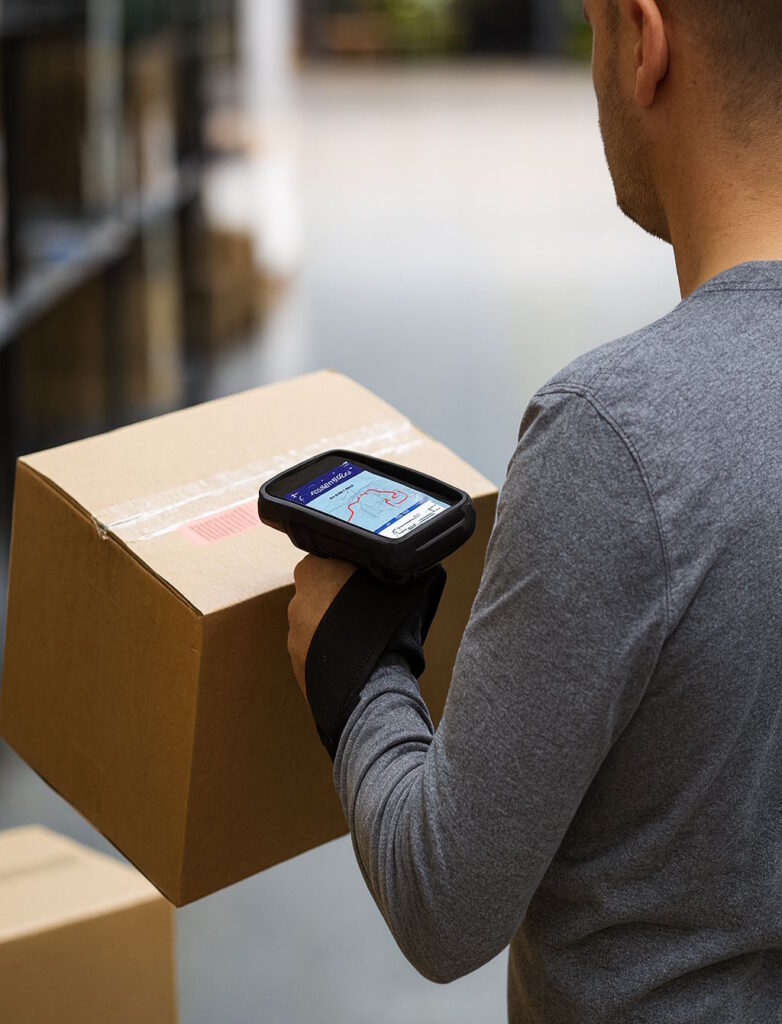
Everest’s Sherpas app is now compatible with Zebra mobile computers and the DataWedge profile, including support for RFID scanning with the RFD40 reader paired with the TC27. Your drivers benefit from an optimal experience combining barcode scanning and long-range RFID reading on a single device.
Why choose Zebra devices for your drivers?
Zebra mobile computers are the gold standard when it comes to professional equipment for logistics and delivery operations. Here’s why they’re a smart investment for your teams:
Exceptional ruggedness: Built to withstand the toughest conditions, Zebra devices handle drops, dust, moisture and extreme temperatures. Your drivers can work with confidence, whether it’s raining, snowing or scorching hot.
Ultra-fast professional scanning: Unlike standard smartphones, Zebra devices feature high-performance barcode scanners capable of reading damaged, poorly printed or distant codes. This scanning speed saves several seconds per parcel, resulting in a significant time gain over a full day of deliveries.
Native RFID compatibility: Certain models such as the TC27 accept professional RFID accessories like the RFD40, turning your rugged smartphone into a true RFID gun for high-volume operations.
All-day battery life: Zebra device batteries are designed to last a full day of intensive work, even with GPS, scanning and RFID reading running continuously. No more mid-route interruptions.
Field-ready ergonomics: With their dedicated physical scan buttons, sunlight-readable displays and optimised grip, Zebra devices are built for all-day use without fatigue.
Barcode or RFID scanning: which technology is right for your deliveries?
With RFD40 integration into Sherpas, the question of which technology to use naturally comes up. Barcode scanning and RFID scanning aren’t competing — they complement each other. Here’s how to decide based on your activity.
Barcode scanning: the universal standard
Barcode scanning remains the most widely used technology in delivery logistics. It requires a direct line of sight between the scanner and the code, and each parcel must be scanned individually. Its main advantage: near-zero labelling cost and universal compatibility with all existing information systems.
Best suited for: single-parcel deliveries, B2C e-commerce, individual proof of passage, signature per parcel, low volumes.
RFID scanning: speed and volume
RFID (Radio Frequency Identification) technology reads multiple tags simultaneously, without line of sight and from a distance — up to several metres depending on the equipment. Paired with a gun like Zebra’s RFD40, it radically transforms high-volume operations.
The benefits of RFID scanning in delivery:
- Read dozens of parcels in a single sweep
- No need to orient or present the parcel to the scanner
- Read through cartons, plastic film and opaque packaging
- Instant inventory of a pallet or full load
- Immediate detection of missing parcels or items not planned in the route
- Enhanced traceability at every stage of the last mile
Best suited for: vehicle loading, route verification, returns management, high-volume B2B deliveries, equipment and WEEE take-back, ship-from-store.
The RFD40 paired with the TC27: the winning combo for delivery
The Zebra RFD40 is a professional UHF RFID reader that clips directly onto the TC27 terminal. This combination turns your TC27 into a genuine RFID gun while retaining all the features of the rugged smartphone: calls, GPS, Sherpas notifications, built-in barcode scanning.
Key strengths of the RFD40:
- Reading range up to 15 metres depending on environment and tag type
- Reading speed: over 1,300 tags per second
- Battery life for a full day of intensive work
- Ergonomic trigger for quick scan activation
- Native DataWedge integration for seamless communication with Sherpas
- Solid mechanical coupling with the TC27 — no cables, no fragile Bluetooth pairing
On a typical B2B delivery, this setup lets you verify the contents of a pallet containing dozens of parcels in under 5 seconds, compared with several minutes using traditional barcode scanning. A major productivity gain, particularly valuable on high-density routes.
Everest’s commitment to Zebra devices
At Everest, we’ve developed a native and comprehensive integration with the Zebra ecosystem to give our customers the best possible experience — for both barcode and RFID scanning.
Native DataWedge integration: We’ve created two DataWedge profiles specifically optimised for Sherpas — one for standard barcode scanning, one for RFID scanning with the RFD40 — enabling setup in just a few minutes. No more manually configuring dozens of options: everything is ready to use.
Dedicated technical support: Our team knows Zebra devices and the RFD40 reader inside out. We can support you through your fleet deployment, from initial setup to day-to-day support for your drivers.
Regular testing: We test Sherpas on the main Zebra models (TC27, TC52, TC57, etc.) as well as on the RFD40 paired with the TC27 to guarantee optimal compatibility and quickly fix any issues.
Continuous updates: We keep evolving our Zebra integration based on field feedback from our customers and new features released by Zebra, particularly on the RFID side.
What is DataWedge?
DataWedge is the data capture utility built into Zebra devices. It lets you configure barcode scanners, RFID readers and other capture peripherals, then transmit scanned data directly to applications like Sherpas. This native integration delivers optimal performance and reliability for your delivery operations.
Thanks to DataWedge, scanned barcodes and read RFID tags are automatically inserted into the appropriate fields in Sherpas, as if the user had typed them in. It’s transparent, fast and reliable.
Requirements
Before you start, make sure you have:
- A Zebra device (TC27, TC52, TC57, or another compatible model)
- The Sherpas app already installed on the device
- A USB cable to connect the device to a computer
- A Windows, Mac or Linux computer
- An internet connection
For RFID scanning only, you’ll also need a TC27 fitted with a charged and clipped-on Zebra RFD40 RFID reader, as well as UHF RFID tags (EPC Gen 2 standard) applied to your parcels or logistics units.
Configuration steps
The procedure is identical for barcode scanning and RFID scanning. Only the DataWedge profile you download changes depending on your use case.
1. Device preparation
Power on your Zebra device and make sure the Sherpas app is installed. If you’re using the RFD40, clip it onto the TC27 and check that it’s charged — the mechanical coupling automatically activates communication between the two devices, with no Bluetooth pairing to manage.
2. Connecting to the computer
- Connect the Zebra device to your computer via the USB cable
- On the device, when the notification appears, select “File transfer” (or “MTP”)
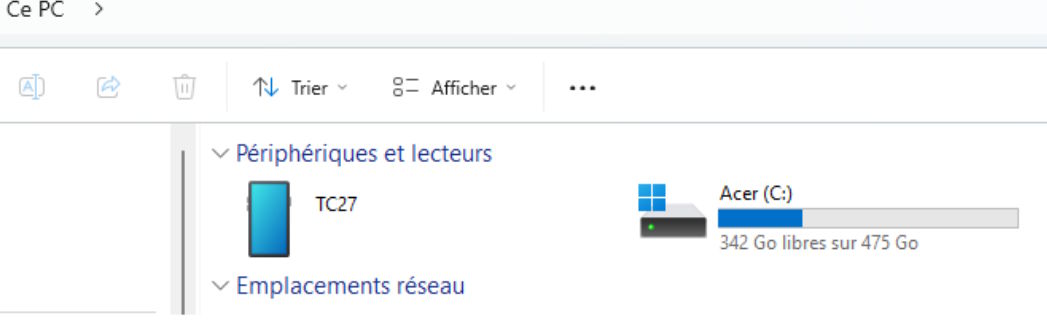
- The device should now be visible in your computer’s file explorer
3. Setting up the DataWedge profile
This step is crucial to activate scanning in Sherpas.
Downloading the profile
On your computer, download the configuration file matching your equipment:
- For standard scanning (barcodes): Click here to download the profile
- For RFID scanning (RFD40 + TC27): Click here to download the profile
The RFID profile contains parameters optimised for UHF reading (transmission power, tag filtering, EPC formatting, read deduplication and automatic actions in Sherpas).
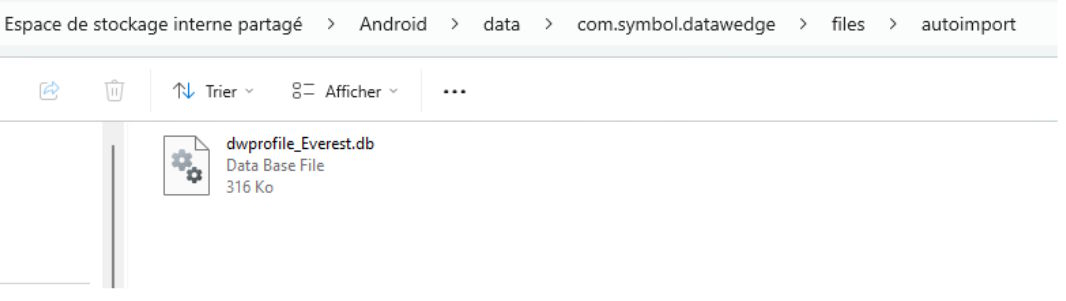
Accessing the autoimport folder
- In your computer’s file explorer, locate the Zebra device (usually named TC27, TC52, etc.)
- Navigate to the following path:
Android\data\com.symbol.datawedge\files\autoimport- Important: If the
autoimportfolder doesn’t exist, create it manually
Copying the profile
Copy the dwprofile_Everest.db file you downloaded into the autoimport folder.
This file contains all the configuration needed for DataWedge to communicate properly with Sherpas, including scan parameters, data formatting and automatic actions.
4. Finalising the setup
- Disconnect the Zebra device from the computer
- Restart the device so DataWedge can detect and automatically activate the new profile
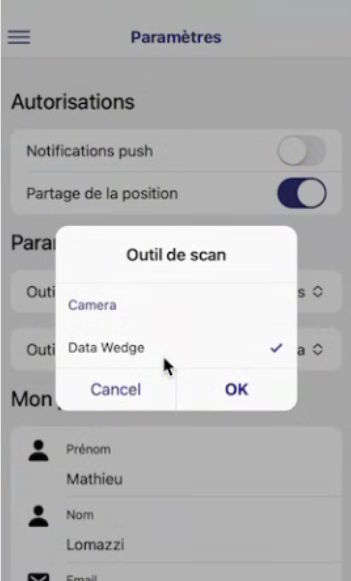
5. Enabling DataWedge scanning in Sherpas
Final step to activate the scanner:
- Open the Sherpas app on your device
- Go to the Settings menu
- Select “Scanning tool”
- Choose “DataWedge” from the list
Your device is now ready to scan barcodes or read RFID tags directly in the Sherpas app, depending on which profile you installed!
Checking that everything works
Barcode scanning test
- Open Sherpas and go to a delivery
- Press the physical scan button on your Zebra device (usually on the side or the back)
- Scan a barcode
- The code should appear automatically in the matching field, with a confirmation sound
RFID scanning test with the RFD40
- Open Sherpas and go to a delivery or a route
- Pull the RFD40 trigger
- Point the gun at your RFID-tagged parcels
- The EPC codes should appear in Sherpas, with a sound confirming each read
- Test multi-read by sweeping several parcels in a single motion to validate performance
Real-world RFID scanning use cases in delivery
Here’s how our customers use RFID scanning on a daily basis to boost productivity:
Vehicle loading verified in seconds: instead of scanning the 80 parcels of a route one by one, the driver sweeps the van with the RFD40 and validates the whole load in a single operation. Missing or extra parcels are immediately identified, eliminating loading errors.
Warehouse return control: at the end of the route, the driver instantly checks which parcels are coming back to the warehouse (failed deliveries, customer returns) without having to unload them one by one.
Equipment and WEEE take-back: for retailers managing the collection of equipment or electrical waste, RFID makes it possible to trace every item collected, even inside a closed bin or sealed carton.
Flash inventory for ship-from-store: before the driver leaves, an RFID scan of the load guarantees that the order is complete and accurate, without opening cartons.
Enhanced last-mile traceability: every parcel event (pickup, loading, delivery) is timestamped in Everest, giving your end customers complete traceability.
Troubleshooting common issues
Scanning isn’t working: Check that you’ve selected “DataWedge” as the scanning tool in Sherpas settings, and that the right profile (barcode or RFID) is present in the autoimport folder.
The DataWedge profile isn’t detected: Make sure the dwprofile_Everest.db file is properly placed in the autoimport folder, then restart the device.
The scanner beeps but nothing happens: Check that the Sherpas app is in the foreground and that you’re on a screen where scanning is possible (delivery form, parcel search, etc.).
The RFD40 isn’t reading any tags: Check that the gun is properly clipped onto the TC27 and that it’s charged. Also make sure your tags are UHF EPC Gen 2 — the only standard compatible with the RFD40.
The same RFID tags are read multiple times: That’s the default behaviour in continuous mode. Everest’s RFID profile includes a deduplicator to avoid duplicates being reported in Sherpas. If the problem persists, contact our support team.
Insufficient RFID range: Range depends on the environment (metal, liquids, nearby emitters) and on the tag type. Our support team can adjust the RFD40’s transmission power via the DataWedge profile for your specific context (metal warehouse, vehicle, store, etc.).
Sync issues: Check that the time and time zone are correctly set to automatic mode.
Advanced configuration
The DataWedge profiles provided by Everest — both barcode and RFID — are preconfigured for optimal operation with Sherpas. For specific needs such as RFID power tuning, EPC prefix filtering, selective reading of certain tag types or customising sounds and vibrations, our technical support team can adapt the profiles to your context.
Deploying across a device fleet
If you’re equipping multiple drivers with Zebra devices and RFD40 guns, we can support you with mass deployment through Mobile Device Management (MDM) solutions such as Zebra Mobility DNA or SOTI. DataWedge profiles can be deployed automatically across the whole fleet in a few clicks. Contact our team to discuss your specific needs.
Need help?
If you run into any issues while setting up barcode or RFID scanning, feel free to contact Everest support. Our team knows Zebra devices and the RFD40 reader inside out, and can guide you step by step — or even step in remotely if needed.
Everest technical support: available Monday to Friday to support your Zebra and RFID deployment.
Our native DataWedge integration, enriched with RFD40 support, gives your drivers a smooth and professional experience — fast barcode scanning and long-range RFID reading — throughout their routes. Combined with the legendary ruggedness of Zebra devices, this solution is the best possible equipment for your field teams.